> ## Documentation Index
> Fetch the complete documentation index at: https://bun.com/docs/llms.txt
> Use this file to discover all available pages before exploring further.
# Bun Redis with Upstash
[Upstash](https://upstash.com/) is a fully managed Redis database as a service. Upstash works with the Redis® API, which means you can use Bun's native Redis client to connect to your Upstash database.
TLS is enabled by default for all Upstash Redis databases.
***
Create a new project by running `bun init`:
```sh terminal icon="terminal" theme={"theme":{"light":"github-light","dark":"dracula"}}
bun init bun-upstash-redis
cd bun-upstash-redis
```
Go to the [Upstash dashboard](https://console.upstash.com/) and create a new Redis database. After completing the [getting started guide](https://upstash.com/docs/redis/overall/getstarted), you'll see your database page with connection information.
The database page displays two connection methods; HTTP and TLS. For Bun's Redis client, you need the **TLS** connection details. This URL starts with `rediss://`.
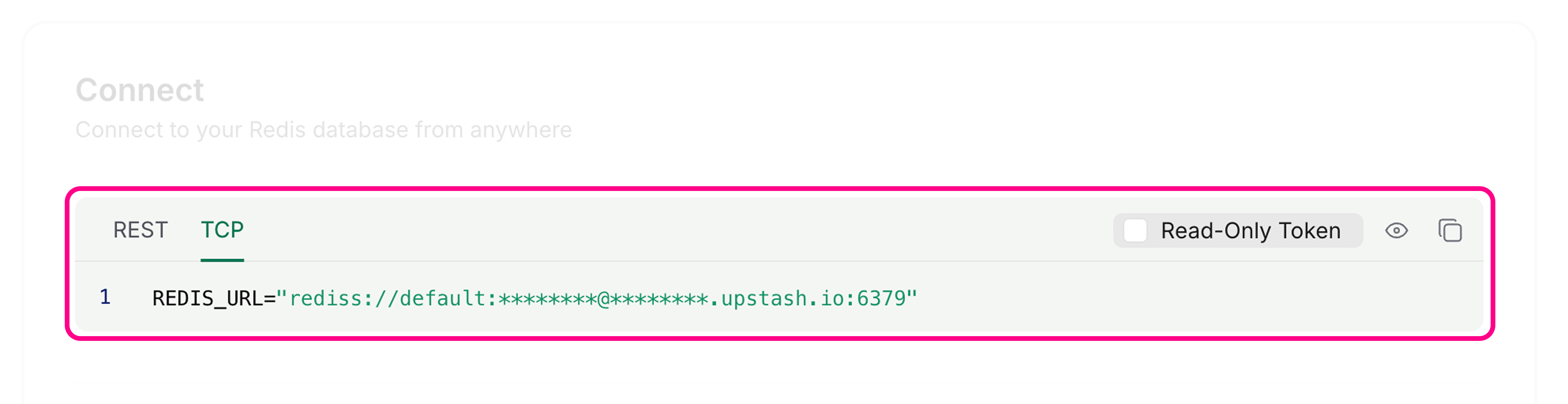 You can connect to Upstash by setting environment variables with Bun's default `redis` client.
Set the `REDIS_URL` environment variable in your `.env` file using the Redis endpoint (not the REST URL):
```ini .env icon="settings" theme={"theme":{"light":"github-light","dark":"dracula"}}
REDIS_URL=rediss://********@********.upstash.io:6379
```
Bun's Redis client reads connection information from `REDIS_URL` by default:
```ts index.ts icon="https://mintcdn.com/bun-1dd33a4e/JUhaF6Mf68z_zHyy/icons/typescript.svg?fit=max&auto=format&n=JUhaF6Mf68z_zHyy&q=85&s=7ac549adaea8d5487d8fbd58cc3ea35b" theme={"theme":{"light":"github-light","dark":"dracula"}}
import { redis } from "bun";
// Reads from process.env.REDIS_URL automatically
await redis.set("counter", "0"); // [!code ++]
```
Alternatively, you can create a custom client using `RedisClient`:
```ts index.ts icon="https://mintcdn.com/bun-1dd33a4e/JUhaF6Mf68z_zHyy/icons/typescript.svg?fit=max&auto=format&n=JUhaF6Mf68z_zHyy&q=85&s=7ac549adaea8d5487d8fbd58cc3ea35b" theme={"theme":{"light":"github-light","dark":"dracula"}}
import { RedisClient } from "bun";
const redis = new RedisClient(process.env.REDIS_URL); // [!code ++]
```
You can now use the Redis client to interact with your Upstash Redis database:
```ts index.ts icon="https://mintcdn.com/bun-1dd33a4e/JUhaF6Mf68z_zHyy/icons/typescript.svg?fit=max&auto=format&n=JUhaF6Mf68z_zHyy&q=85&s=7ac549adaea8d5487d8fbd58cc3ea35b" theme={"theme":{"light":"github-light","dark":"dracula"}}
import { redis } from "bun";
// Get a value
let counter = await redis.get("counter");
// Set a value if it doesn't exist
if (!counter) {
await redis.set("counter", "0");
}
// Increment the counter
await redis.incr("counter");
// Get the updated value
counter = await redis.get("counter");
console.log(counter);
```
```txt theme={"theme":{"light":"github-light","dark":"dracula"}}
1
```
The Redis client automatically handles connections in the background. No need to manually connect or disconnect for basic operations.
You can connect to Upstash by setting environment variables with Bun's default `redis` client.
Set the `REDIS_URL` environment variable in your `.env` file using the Redis endpoint (not the REST URL):
```ini .env icon="settings" theme={"theme":{"light":"github-light","dark":"dracula"}}
REDIS_URL=rediss://********@********.upstash.io:6379
```
Bun's Redis client reads connection information from `REDIS_URL` by default:
```ts index.ts icon="https://mintcdn.com/bun-1dd33a4e/JUhaF6Mf68z_zHyy/icons/typescript.svg?fit=max&auto=format&n=JUhaF6Mf68z_zHyy&q=85&s=7ac549adaea8d5487d8fbd58cc3ea35b" theme={"theme":{"light":"github-light","dark":"dracula"}}
import { redis } from "bun";
// Reads from process.env.REDIS_URL automatically
await redis.set("counter", "0"); // [!code ++]
```
Alternatively, you can create a custom client using `RedisClient`:
```ts index.ts icon="https://mintcdn.com/bun-1dd33a4e/JUhaF6Mf68z_zHyy/icons/typescript.svg?fit=max&auto=format&n=JUhaF6Mf68z_zHyy&q=85&s=7ac549adaea8d5487d8fbd58cc3ea35b" theme={"theme":{"light":"github-light","dark":"dracula"}}
import { RedisClient } from "bun";
const redis = new RedisClient(process.env.REDIS_URL); // [!code ++]
```
You can now use the Redis client to interact with your Upstash Redis database:
```ts index.ts icon="https://mintcdn.com/bun-1dd33a4e/JUhaF6Mf68z_zHyy/icons/typescript.svg?fit=max&auto=format&n=JUhaF6Mf68z_zHyy&q=85&s=7ac549adaea8d5487d8fbd58cc3ea35b" theme={"theme":{"light":"github-light","dark":"dracula"}}
import { redis } from "bun";
// Get a value
let counter = await redis.get("counter");
// Set a value if it doesn't exist
if (!counter) {
await redis.set("counter", "0");
}
// Increment the counter
await redis.incr("counter");
// Get the updated value
counter = await redis.get("counter");
console.log(counter);
```
```txt theme={"theme":{"light":"github-light","dark":"dracula"}}
1
```
The Redis client automatically handles connections in the background. No need to manually connect or disconnect for basic operations.